
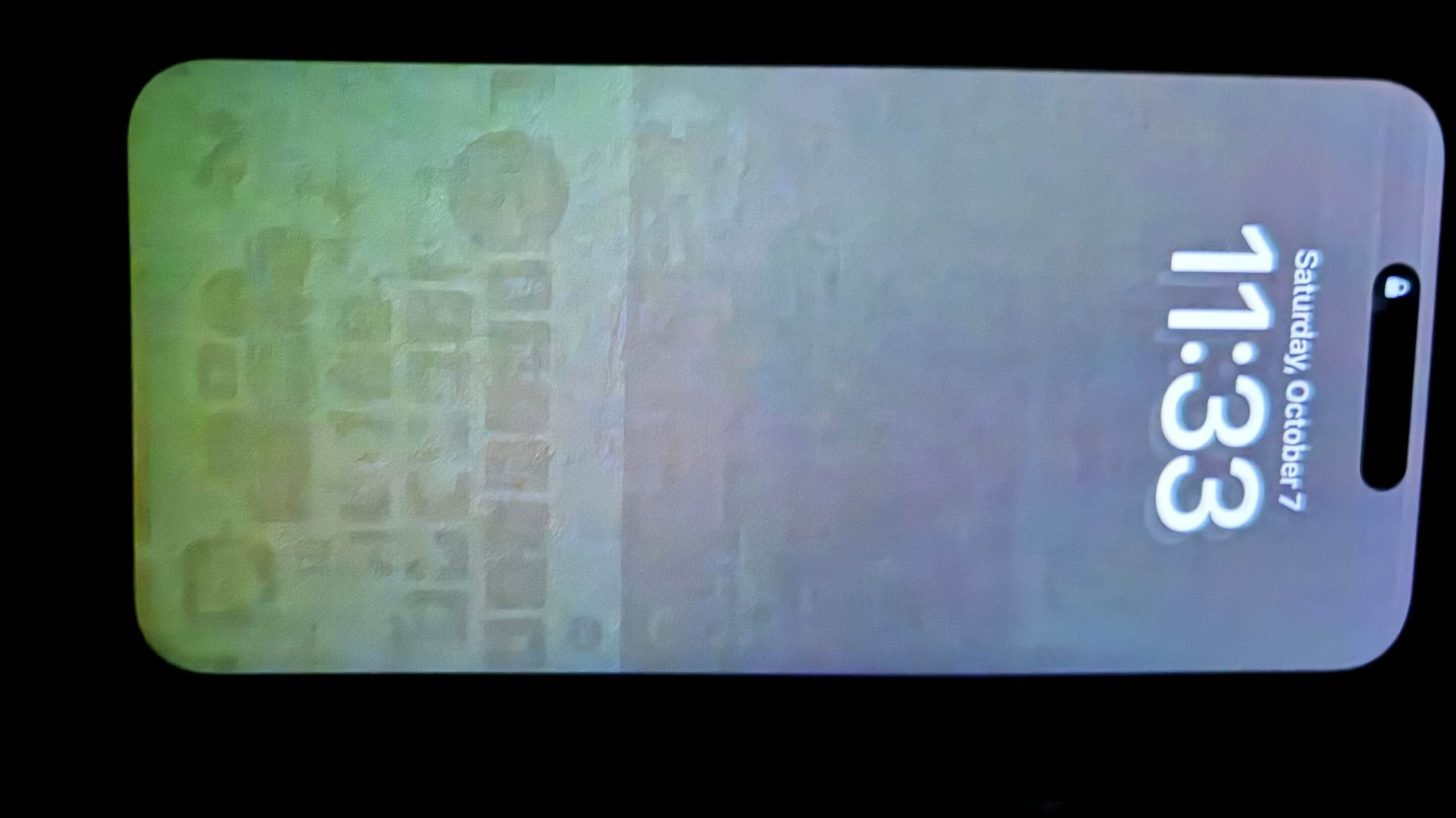
How to Fix Burn-In or Ghost Image on Your Display (Samsung & iPhone)
Burn-in or ghost images appear when parts of your screen stay visible even when the image changes.
This is common on OLED/AMOLED displays used in Samsung and iPhone models.
Here’s what you can actually fix — and what you cannot.
1. Burn-In Issues Are One of the Most Common Complaints
At both our Christchurch and Auckland shops, we see burn-in cases almost every day.
Especially on Samsung AMOLED panels and iPhone X/11/12/13/14 OLED displays, this issue appears more often than customers expect.
Static elements — navigation bars, keyboard outlines, status icons, social-media UI, video playback controls — slowly etch into the screen.
Once noticeable, the problem usually keeps expanding.
2. You’re Not Imagining It — Many Users Face the Same Problem
These are common complaints we hear:
- Grey shadows remain when switching apps.
- Status bar icons stay on even in full-screen video.
- Keyboard outlines visible on white backgrounds.
- A permanent tint (pink, blue, green) appears on certain screen areas.
- The issue worsens at low brightness.
If you notice these symptoms, you’re not alone. Burn-in often starts subtly — most only spot it when it becomes severe.
3. What You Can Fix — And What You Can’t
3.1 Temporary “Ghosting” vs. Permanent Burn-In
Ghost image (image retention) — temporary.
Burn-in — permanent damage to OLED sub-pixels.
3.2 Fixes for Temporary Ghosting
- Raise brightness to 80–100% for a few minutes.
- Play a full-screen white video (search “white screen video” on YouTube).
- Switch to Dark Mode to reduce static bright areas.
- Disable Always-On Display / static UI elements on Samsung & iPhone.
- Shorten screen timeout to avoid lengthy static images.
- Change wallpapers / themes regularly to avoid repeated pixel stress.
These methods may reverse ghosting if it happened recently.
Works best if the screen hasn’t been static for weeks.
3.3 Permanent Burn-In: No Software Fix
Once sub-pixels degrade unevenly, no video, app, or white screen will recover them.
A full display replacement is the only reliable solution.
3.4 Real Cases from Our Repair Shop
- Samsung S21 Ultra — deep red burn-in after heavy game use → full panel change.
- iPhone 12 — keyboard ghosting turned into permanent burn-in after months of texting.
- Note 20 Ultra — pink line + persistent ghost image from video streaming.
- iPhone X — blue-tint patch from early OLED wear, expanded over time.
3.5 When to Replace the Screen
- Shadows remain even at high brightness.
- Tint or discoloration spreads over time.
- Static icons remain on screen across apps or during video.
- Patch grows into larger areas or changes colour over weeks.
4. Why Burn-In Happens (Screen Physics)
OLED/AMOLED displays light up individual organic-LED pixels.
When those same pixels show the same image for hundreds of hours, they age unevenly.
According to display manufacturer guides:
- Blue sub-pixels degrade fastest — often causing yellow/pink tint over time.
- High brightness accelerates pixel wear.
- Heat worsens OLED ageing.
- Static UI elements cause uneven wear — navigation bars, status icons, persistent buttons.
That’s why maps, social-app nav bars, constant UI, or long game sessions cause burn-in faster than casual use.
5. Related Articles for NZ Users
This article is for general information and reference only. Device conditions vary, and you should not rely solely on this content to make repair or safety decisions.
For accurate diagnosis or repair, please have your device inspected by a qualified technician.